AND THAT’S A WRAP!
You’re all set, Karen!
Everything you need to keep your website running smoothly — right here.
We built something really special together. This page is your permanent reference: how to manage your site, what to do when something comes up, and how to bring me back in when you need me.

xo,
Maria
Your Quick Links
Some quick links you might be needing.
The Google Drive is where you'll find some photos that might come in handy for your blogs.
And Contact Maria is always there if you ever have a question.
Some tips to get you started
Squarespace has a pretty comprehensive Help Centre if you are stuck with anything. You can also email me anytime you feel like you are going round in circles.
Here’s s simple guide that will help you plant your feet:
-
Always check mobile view after making any changes
Save before closing the editor. Squarespace does NOT autosave
If something looks off, do a hard refresh first. Command + Shift + R on Mac, Control + Shift + R on Windows
Hide sections instead of deleting them. Click the eye icon next to any block so you can bring it back if you need it
When adding new photos, use images with a similar mood and colour palette to what is already on the site
If you are thinking about making a bigger layout change, email Maria so she can guide you
-
Write your post in a Google Doc first. Squarespace does not autosave and you do not want to lose your work (happened a few times to me, and its not pretty)
When ready, copy and paste your text into a new blog post in Squarespace
To create a new post go to Pages, Blog, then hit the + button
Add a hero image at the top of every post
Before publishing go into Settings, then SEO, and fill in the SEO title, description and URL slug
Name your image file before uploading (see Image Naming section below)
Add alt text to every image you upload
A small image bank has been provided for you to get started. For additional free images try Unsplash (which you can also access from inside Squarespace), Pexels, or Stocksnap.io — search terms like "calm," "nature," "warmth," or "connection" tend to work well for a therapy site. For some sites you can also enter the hex codes of your brand to surface images that are more in line with your colour palette.
Use your artistic judgement to stay within the colour palette, tone and mood of your site. Don’t use photos with too many bright or clashing colours, or too dramatic lighting or ones that look too ‘posed’. If you really like a photo but think its colours are not aligned, it is a good idea to de-saturate or make the image black & white, which will neutralize it to some extent.
-
Every page has been given a custom SEO title, meta description and URL slug
When you add a new page always fill in the SEO fields before publishing. Go to the page settings and click SEO
Rename every image file before uploading. Use descriptive keywords separated by hyphens, for example adhd-therapy-port-perry.jpg not IMG_4521.jpg
In Squarespace click on any image then File Info to add alt text. Write a brief description that includes a keyword where it feels natural, for example "Karen McKenna-Quayle ADHD therapist Port Perry"
Writing new blog posts regularly is the single most effective thing you can do to maintain and improve your rankings over time
To monitor your rankings, open an incognito window and search your name and practice name in Google periodically and note where you appear
For accurate ranking data, connect your site to Google Search Console at search.google.com/search-console. It shows you exactly what search terms people are using to find you, which pages are ranking, and how many clicks you are getting. I can help you set this up at our next check-in, if you are not sure how to do it
-
If any external link changes, your Jane booking link, Psychology Today profile, or any other directory listing, make sure to update it everywhere it appears on the site
The Jane booking link is the most important one. It appears on multiple pages as the "Book a Free Consultation" button. If it ever changes, go through every page and update each button individually
To find all instances quickly, go through each page in your navigation and click every booking button to confirm it is still working. Do this any time you make a change to your Jane account
-
Access your analytics via the Squarespace dashboard left sidebar, then Analytics
Wait at least 4 weeks before drawing any conclusions from the data
Key things to watch: most visited pages, traffic sources, and where people are dropping off
We have biweekly check-ins scheduled until July to review this together


When you first reached out, you had a practice full of heart and expertise and a website that wasn't keeping up with either. Now you have both ❤️
Working with you has been one of the highlights of building Gumptious. You were thoughtful, prepared and genuinely collaborative at every step. I feel lucky to have had a client like you, and I wish only the best for you!
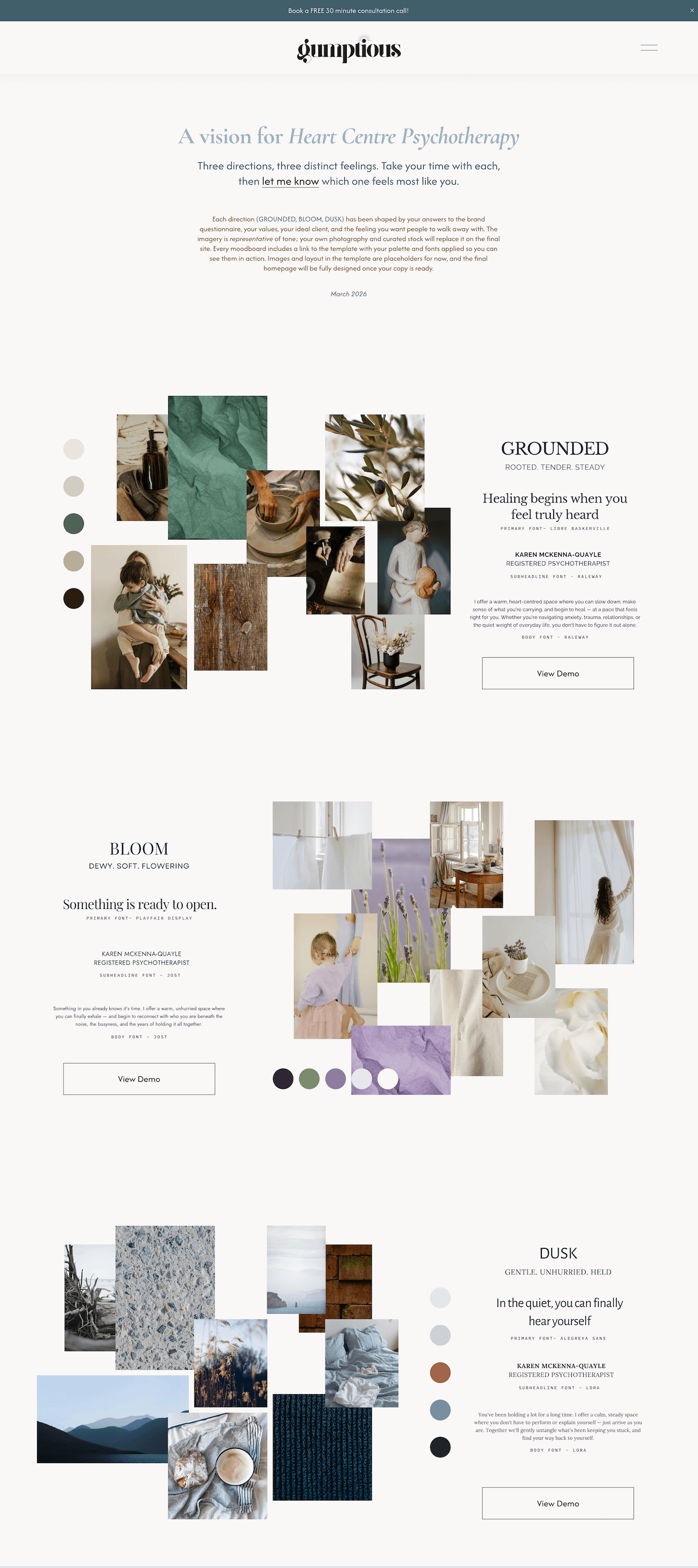
What a journey!
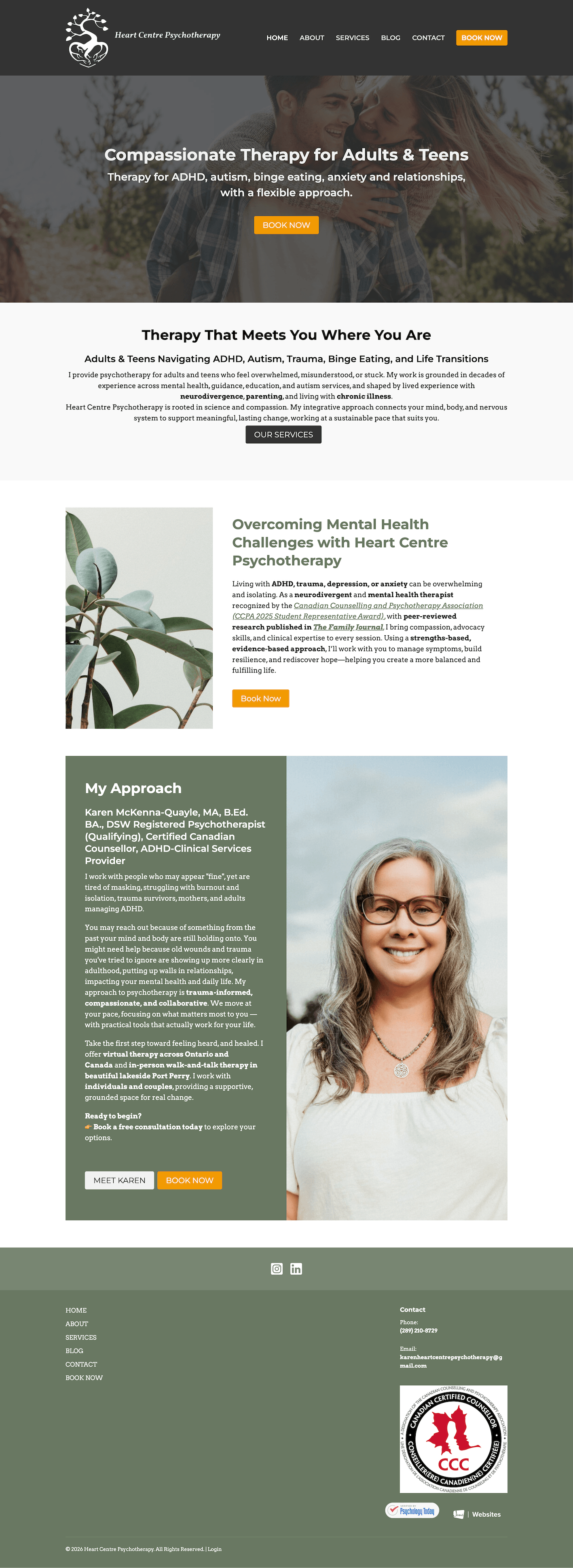
Now you tell me how it went
Building Gumptious is personal work, and every client I take on is a genuine investment of my time, care and expertise. Testimonials from clients like you are what help other women find me and trust that the work is real.
If you have a few minutes to share your experience, I would be truly grateful. You have been an absolute pleasure to work with and your words would mean a great deal.

If working together felt right, I would be so grateful if you passed my name along. The women I work best with are a lot like you — established, accomplished, and ready for an online presence that actually reflects who they are. A warm introduction goes a long way.
You can send anyone my way at maria@gumptiousdesignshop.com or point them to the contact form here.
Additionally, you can watch me on YouTube
where every Sunday I share strategy, story & the occasional rant. Longer thoughts, moving pictures.